eSIM Not Working? Complete Troubleshooting Guide for 2026
Experiencing eSIM issues? This comprehensive guide for 2026 covers activation failures, no signal, slow data, and more. Get expert tips to fix your connectivity.
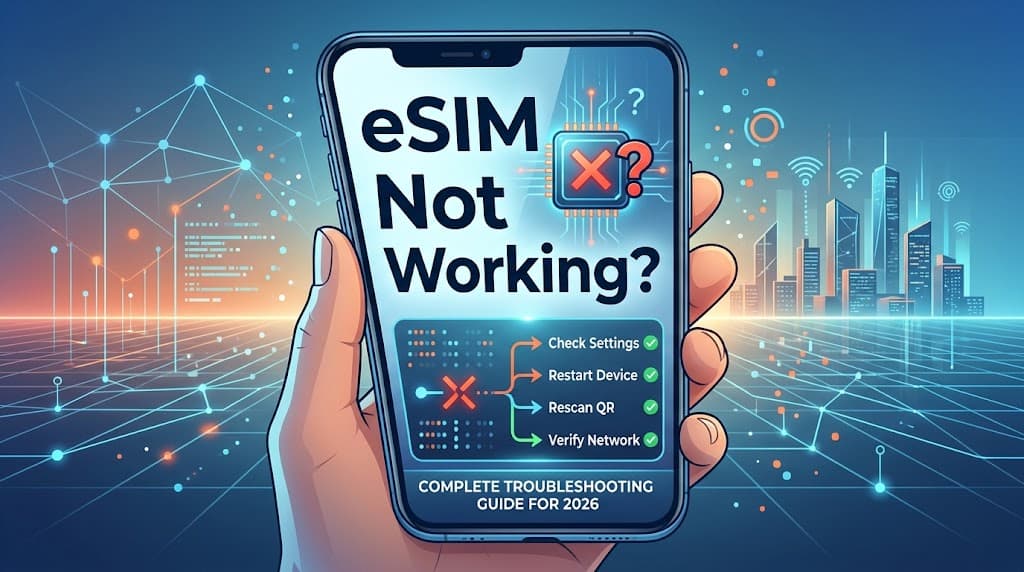
eSIM Not Working? Your Complete Troubleshooting Guide for 2026
Welcome to the future of connectivity! eSIMs have revolutionized how we stay connected, offering unparalleled flexibility and convenience, especially for travelers. No more fumbling with tiny SIM cards, no more searching for local stores – just instant digital connectivity. Here at FindMyEsim.io, we've helped millions compare 154+ providers across 203+ countries with 13225+ plans, so we know a thing or two about getting you online.
However, even the most cutting-edge technology can encounter a hiccup or two. Whether you're a seasoned eSIM user or just getting started, running into issues like activation failures, no signal, or slow data can be incredibly frustrating. But don't despair! Most common eSIM problems have straightforward solutions. This comprehensive troubleshooting guide for 2026 is designed to equip you with the knowledge and actionable steps to diagnose and fix the most frequent eSIM woes, ensuring your digital journey remains smooth and uninterrupted.
Before diving into specific problems, if you're new to eSIMs or need a refresher, we highly recommend checking out our guide: What is an eSIM? The Complete Guide for 2026. Understanding the basics can often prevent many issues.
The Golden Rule of Troubleshooting: Start Simple
Before you panic or dive into complex settings, always begin with the simplest solutions. You'd be surprised how often these fix the problem.
- Restart Your Device: The classic IT solution. A simple reboot can often clear temporary glitches and refresh your network connection.
- Check Your Internet Connection (for Activation): If you're trying to activate an eSIM, you need a stable internet connection (Wi-Fi or another active cellular connection) for the download process.
- Ensure Software is Updated: Outdated operating system software can cause compatibility issues. Make sure your smartphone or tablet is running the latest version.
- Verify eSIM Purchase and Validity: Double-check your purchase confirmation to ensure the eSIM plan is active and hasn't expired.
Common eSIM Problems and Their Solutions
1. eSIM Activation Failures
This is often the first hurdle for new eSIM users. Activation issues can range from QR code problems to incorrect manual inputs.
Symptoms:
- Error message during installation (e.g., "Unable to add cellular plan," "Invalid QR code").
- eSIM profile doesn't appear in settings after scanning.
- eSIM shows as "Activating..." indefinitely.
Actionable Fixes:
- Re-scan the QR Code:
- Ensure good lighting and a clear, flat surface for the QR code.
- Hold your phone steady and ensure the entire QR code is within the frame.
- If scanning from another screen, ensure that screen is bright and clean.
- Important: Most QR codes are for one-time use. If you've already attempted activation, contact your provider for a new QR code or activation details if you encounter persistent issues.
- Manual Entry:
- If QR scanning fails, your provider usually offers a manual entry option. This involves entering an SM-DP+ Address and an Activation Code.
- Double-check every character for typos, including hyphens and case sensitivity. It's often easier to copy-paste if possible.
- For a detailed walkthrough, refer to our guide on How to Install an eSIM on iPhone & Android (Step-by-Step Guide for 2026).
- Stable Internet Connection:
- eSIM profiles are downloaded over the internet. Ensure you have a strong Wi-Fi connection or an active cellular data connection before attempting activation.
- Try switching between Wi-Fi and mobile data to see if one works better.
- Device Compatibility:
- Not all devices support eSIM. While most newer flagship phones do, older models or certain regional variants might not.
- Verify your device's compatibility with eSIM technology. Check your device manufacturer's specifications.
- Provider-Specific App Activation:
- Some eSIM providers require you to activate through their dedicated app. Download the app and follow the instructions.
2. No Signal or "No Service"
You've activated your eSIM, but your phone shows no bars or a "No Service" message. This is a common issue, especially when traveling.
Symptoms:
- "No Service" or "Searching" displayed on your phone.
- No network bars.
- Unable to make or receive calls/texts.
- No mobile data connectivity.
Actionable Fixes:
- Enable the eSIM Profile:
- Go to your phone's cellular settings.
- Ensure the newly installed eSIM profile is turned ON and selected as the primary data source (if you have multiple SIMs/eSIMs).
- Check Roaming Settings (if applicable):
- If you're using a travel eSIM or your home eSIM abroad, data roaming must be enabled for that specific eSIM profile.
- Go to Cellular/Mobile Data Options and toggle "Data Roaming" ON for your eSIM.
- Manual Network Selection:
- Sometimes your phone struggles to automatically connect to the partner network.
- Go to Cellular/Mobile Data settings > Network Selection (or Carrier) > Turn off "Automatic."
- Your phone will search for available networks. Select one of the networks listed by your eSIM provider (they usually list their partner networks in their FAQs or confirmation email).
- Try a few different networks if the first one doesn't work.
- APN Settings (Access Point Name):
- Incorrect APN settings are a frequent culprit for no data, even with a signal.
- Your eSIM provider will supply the correct APN. Go to Cellular/Mobile Data settings > your eSIM profile > Mobile Data Network (or Access Point Names).
- Enter the APN exactly as provided (it's often something simple like "internet" or "data"). Leave other fields blank unless specified.
- Save the changes and restart your device.
- Toggle Airplane Mode:
- Turn Airplane Mode ON for 30 seconds, then turn it OFF. This forces your phone to re-establish a connection with the network.
- Physical Location:
- Are you in an area with known poor coverage? Move to a different location, preferably outdoors, and recheck.
3. Slow Data or Intermittent Connectivity
Your eSIM is connected, but the internet is sluggish, or it frequently drops out.
Symptoms:
- Web pages load slowly or time out.
- Streaming services buffer constantly.
- Apps struggle to connect or refresh.
- Data connection frequently disconnects and reconnects.
Actionable Fixes:
- Verify APN Settings:
- As mentioned above, incorrect APN settings can lead to poor performance. Double-check them.
- Check Data Usage & Caps:
- Have you used up your high-speed data allowance? Many plans reduce speeds after a certain amount of data is consumed (Fair Usage Policy).
- Check your provider's app or website for your remaining data balance.
- Network Congestion:
- In densely populated areas or during peak times, networks can become congested, leading to slower speeds. There's not much you can do about this except try again later or move to a less congested area.
- Reset Network Settings:
- This can resolve deeper network configuration issues. Be aware this will reset all Wi-Fi passwords, Bluetooth pairings, and VPN settings.
- On iOS: Settings > General > Transfer or Reset iPhone > Reset > Reset Network Settings.
- On Android: Settings > System > Reset options > Reset Wi-Fi, mobile & Bluetooth (wording may vary).
- Test with Another Device (if possible):
- If you have another eSIM-compatible device, try installing the eSIM there to rule out an issue with your primary device.
- Check for Local Network Issues:
- Are local network outages reported in your area? Sometimes the issue isn't your eSIM but the local infrastructure.
4. "eSIM Not Supported" Errors
You're trying to install an eSIM, but your device claims it's not supported.
Symptoms:
- Error message "eSIM not supported on this device" during installation.
- Option to add a cellular plan is missing from settings.
Actionable Fixes:
- Verify Device Compatibility:
- This is the most common reason. Not all phones support eSIMs. Even within a model line (e.g., iPhone 13), certain regional versions (like those sold in mainland China) might not have eSIM functionality.
- Check your device's specifications on the manufacturer's official website.
- Software Update:
- Ensure your device's operating system is fully updated. eSIM support can sometimes be introduced or improved with software updates.
- Carrier Lock (less common for this specific error):
- While less common for a direct "not supported" message, a carrier-locked phone *could* potentially restrict eSIM functionality if the carrier's firmware prevents it. See the next section for more on carrier locks.
- Regional Restrictions:
- Some devices purchased in specific regions might have hardware variations that omit eSIM support.
5. Carrier Lock Issues
A carrier-locked phone can prevent you from using an eSIM from a different provider, even if the phone is otherwise eSIM-compatible.
Symptoms:
- "SIM Not Supported" or "Network Locked" message when trying to activate an eSIM from a different carrier.
- eSIM installs but fails to connect to any network.
Actionable Fixes:
- Check Your Device's Lock Status:
- The easiest way is to insert a physical SIM card from a different carrier. If it works, your phone is unlocked. If not, it's likely locked.
- On iOS, you can sometimes find this under Settings > General > About > Carrier Lock. It should say "No SIM restrictions."
- Contact Your Original Carrier:
- If your phone is locked, you must contact the carrier it was originally purchased from.
- Request an unlock. They typically have specific criteria (e.g., contract fulfilled, account in good standing) and a process for unlocking devices. This can take a few days.
- Note: FindMyEsim.io cannot unlock your device. This is solely between you and your original carrier.
- Consider a New, Unlocked Device:
- If unlocking isn't an option or is too cumbersome, a new, factory-unlocked device is the best way to ensure full eSIM compatibility and freedom.
6. Switching Between eSIM Profiles and Managing Multiple eSIMs
eSIMs shine when you have multiple profiles, but managing them can sometimes lead to confusion.
Symptoms:
- Wrong eSIM profile is active for data or calls.
- Difficulty finding or activating a specific eSIM.
- Accidentally deleted an eSIM profile.
Actionable Fixes:
- Understand Your Device's Dual SIM/eSIM Management:
- Most modern phones allow you to label your eSIMs (e.g., "Travel," "Work," "Personal"). Do this immediately after installation for clarity.
- Go to Cellular/Mobile Data settings. Here you can:
- Set Default Line: Choose which line is used for calls, messages, and mobile data.
- Switch Data Line: Easily toggle which eSIM provides mobile data.
- Turn On/Off Profiles: Activate or deactivate an eSIM profile without deleting it.
- Check Data Source Selection:
- If you have multiple active eSIMs, ensure the correct one is selected for mobile data.
- On iOS: Settings > Cellular > Mobile Data > Select the desired eSIM.
- On Android: Settings > Network & Internet > SIMs > Preferred SIM for mobile data.
- Accidental Deletion:
- If you accidentally delete an eSIM profile from your device, you usually cannot restore it without a new QR code or activation details from your provider.
- Contact your eSIM provider immediately for a new activation code.
- Labeling is Key:
- Use descriptive labels for your eSIMs (e.g., "USA Travel," "Home SIM," "Europe Data"). This prevents confusion when switching.
The FindMyEsim.io Diagnostic Flowchart: A Step-by-Step Approach
When you're facing an eSIM issue, a structured approach can save you time and frustration. Here's a description of a diagnostic flowchart you can follow:
- Start: Do you have an eSIM issue? (Yes/No)
- Is the issue during eSIM Installation/Activation? (Yes/No)
- YES (Installation/Activation Issue):
- Have you successfully scanned the QR code or manually entered details?
- NO: Re-scan carefully, ensure good lighting, stable internet. Try manual entry. If still failing, request new QR/details from provider. (Go to Contact Provider)
- YES (But still not active): Is your device eSIM compatible? Is your software updated? Do you have a stable internet connection?
- NO to any: Address compatibility/update/internet issues.
- YES to all: Contact eSIM provider for support. (Go to Contact Provider)
- NO (Issue is Post-Activation):
- Is the issue "No Signal" / "No Service"?
- YES:
- Is the eSIM profile turned ON in settings?
- Is Data Roaming ON (if abroad)?
- Try Manual Network Selection.
- Toggle Airplane Mode.
- Restart device.
- If still no signal, check local coverage maps or contact eSIM provider. (Go to Contact Provider)
- NO (Signal is present but Data is Slow/Intermittent/Not Working)?
- YES:
- Check APN settings.
- Check data usage/caps.
- Reset Network Settings.
- Try a different physical location.
- If still slow/intermittent, contact eSIM provider. (Go to Contact Provider)
- NO (Other issue, e.g., eSIM not supported, Carrier Lock, Switching problems)?
- eSIM Not Supported: Verify device compatibility, software updates. If device is truly incompatible, consider new device.
- Carrier Lock: Contact original carrier for unlock.
- Switching Profiles: Ensure correct eSIM selected for data/calls, use clear labels.
- Go to Contact Provider: If all troubleshooting steps fail, it's time to reach out.
- End.
When to Contact Support: Your eSIM Provider vs. Device Manufacturer vs. FindMyEsim.io
Knowing who to contact for specific issues can save you a lot of time and frustration. Here's a quick guide:
Contact Your eSIM Provider (Most Common)
Your eSIM provider is your first point of contact for almost all connectivity and plan-related issues. This includes companies like Airalo, Holafly, Nomad, etc., which you might have found through FindMyEsim.io.
- Activation Codes/QR Codes: If your QR code is invalid, expired, or you accidentally deleted your profile.
- No Signal/No Service (after basic troubleshooting): If you've checked settings, roaming, and APN, but still can't connect.
- Slow Data/No Data (after basic troubleshooting): If APN is correct and you have data allowance, but speeds are poor or non-existent.
- Plan-Specific Issues: Data balance, plan expiry, renewal problems, fair usage policy questions.
- Billing and Payments: Any issues related to your purchase or subscription.
- Network Compatibility: Questions about their partner networks in a specific country.
Contact Your Device Manufacturer (Apple, Samsung, Google, etc.)
Your device manufacturer is responsible for the hardware and operating system.
- "eSIM Not Supported" Error: If you've verified your device model and software are up to date, but the phone still claims it doesn't support eSIM. This might indicate a hardware fault or specific regional variant limitation.
- Device Malfunction: If your phone is generally behaving erratically, freezing, or has other hardware-related issues that might impact eSIM functionality.
- Software Bugs: If a recent OS update seems to have broken eSIM functionality across the board (though this is rare and usually patched quickly).
Contact Your Original Carrier (if device is locked)
If your device was purchased from a mobile network operator with a contract, they are the only ones who can unlock it.
- Carrier Lock Issues: If your phone is preventing you from using any other SIM/eSIM because it's locked to their network.
Contact FindMyEsim.io
We are your ultimate comparison platform, but we do not sell eSIMs directly or provide direct technical support for specific eSIM plans.
- General eSIM Information: Questions about how eSIMs work, device compatibility (general advice), or best practices.
- Provider/Plan Comparison: Assistance in navigating our vast database to find the best plan for your needs. For example, if you're looking for Cheapest eSIM Plans in 2026: Your Ultimate Guide to Budget Connectivity.
- Feedback on Providers: If you have feedback about a provider listed on our site.
- Finding Alternatives: If your current eSIM isn't working out, we can help you Compare eSIM Providers or Browse eSIM by Country to find a new one.
General Best Practices and Pro Tips for eSIM Users
Prevention is always better than cure. Following these tips can minimize the chances of encountering eSIM problems:
- Install Before You Travel: Whenever possible, install your travel eSIM before you leave home, while you still have a reliable internet connection. This gives you time to troubleshoot any activation issues without added travel stress.
- Read Provider Instructions Carefully: Every eSIM provider has slightly different instructions. Read them thoroughly, especially regarding activation steps, APN settings, and network selection.
- Label Your eSIMs: Immediately after installation, rename your eSIM profiles to something descriptive (e.g., "USA Data," "Home SIM"). This makes managing multiple profiles much easier.
- Keep Activation Details Safe: Do not delete the email or QR code until your trip is over and you are certain you won't need to reinstall the eSIM. Some providers allow reinstallation, others require a new purchase.
- Monitor Data Usage: Regularly check your data usage through your phone's settings or the eSIM provider's app. This helps avoid unexpected data exhaustion and throttling.
- Understand Fair Usage Policies: Be aware that many unlimited or high-data plans come with a Fair Usage Policy, which might reduce speeds after a certain threshold.
- Stay Updated: Keep your phone's operating system updated. Software updates often include bug fixes and performance improvements for eSIM functionality.
- Disable Auto-Switching: If you have multiple eSIMs or a physical SIM, consider disabling automatic data switching (if your phone has this feature) to prevent unexpected charges or usage on the wrong plan.
Conclusion
eSIM technology is a game-changer for global connectivity, offering unparalleled flexibility and ease. While occasional hiccups can occur, most common eSIM problems are easily resolvable with a few simple troubleshooting steps. By understanding the common issues, knowing how to diagnose them, and knowing when to reach out to the right support channel – be it your eSIM provider, device manufacturer, or leveraging resources like FindMyEsim.io to find alternatives – you can ensure a seamless and connected experience wherever your adventures take you in 2026 and beyond. Don't let a minor technical glitch stand between you and the world; empower yourself with this guide and stay connected!
Frequently Asked Questions About eSIM Troubleshooting
Can I reinstall an eSIM if I accidentally deleted it?
It depends on the eSIM provider. Some providers issue one-time QR codes, meaning you'll need to contact them for a new one or potentially repurchase. Others allow you to reinstall the same profile. Always check with your specific provider first. It's best practice not to delete an eSIM profile unless you are absolutely certain you won't need it again.
Why is my eSIM showing "No Service" even after successful activation?
"No Service" after activation is often due to incorrect network settings. Ensure data roaming is enabled (if traveling), try manually selecting a network from your provider's list, and double-check your APN settings. A quick restart or toggling airplane mode can also help your phone re-register with the network.
What is an APN and why is it important for my eSIM?
APN stands for Access Point Name. It's a gateway between your mobile network and the internet. Correct APN settings are crucial for your phone to connect to the internet via your eSIM. If your APN settings are wrong, you might have a signal but no data. Your eSIM provider will give you the correct APN to enter in your phone's cellular settings.
My phone says "eSIM not supported," but it's a new model. What gives?
Even new models can have regional variations. For example, some phones sold in specific markets (like mainland China) might not have eSIM hardware. Ensure your device's exact model number supports eSIMs by checking the manufacturer's official specifications. Also, confirm your phone's operating system is fully updated, as eSIM functionality can sometimes rely on the latest software.
How can FindMyEsim.io help if my current eSIM isn't working?
While we don't provide direct technical support for individual eSIMs, FindMyEsim.io is your go-to resource for finding alternatives. If your current eSIM isn't meeting your needs, you can easily Compare eSIM Providers or Browse eSIM by Country to find a new, reliable plan that better suits your requirements. We offer a vast selection from 154+ providers across 203+ countries with 13225+ plans, ensuring you can quickly get back online with a different option.
FindMyEsim Editorial
eSIM Experts
The FindMyEsim team compares eSIM plans from 40+ providers to help travelers stay connected. We test, review, and analyze pricing so you can find the best deal for every destination.
Find the perfect eSIM for your next trip
Compare plans from 40+ providers across 170+ countries
Compare eSIM Plans