How to Install an eSIM on iPhone & Android (Step-by-Step Guide for 2026)
A detailed step-by-step guide to installing an eSIM on your iPhone (iOS 17+) or Android device (Samsung, Pixel, etc.) for seamless global connectivity.
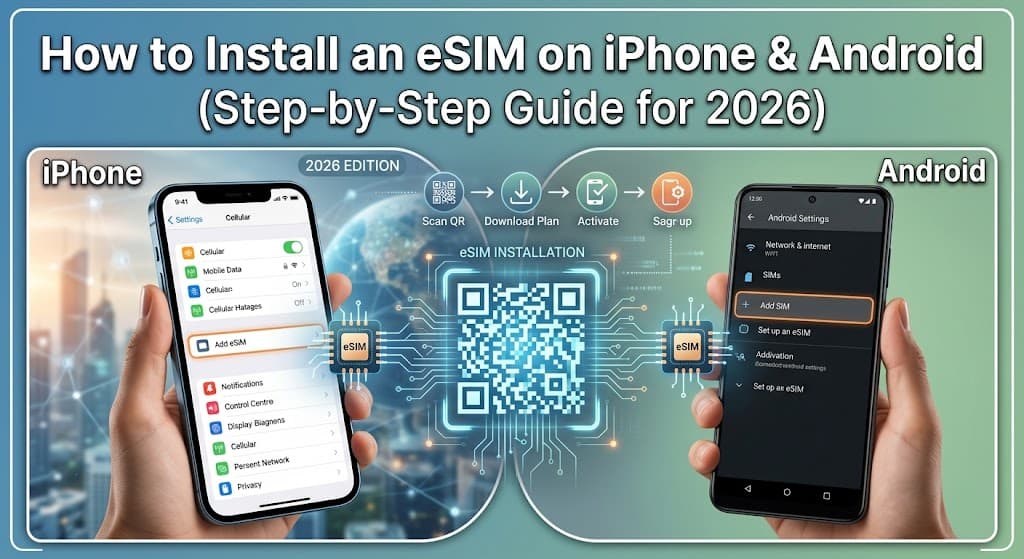
Unlock Global Connectivity: Your Ultimate eSIM Installation Guide for iPhone & Android
Welcome, savvy traveler and tech enthusiast! If you're reading this, you're likely ready to ditch the physical SIM card hassle and embrace the future of mobile connectivity: the eSIM. At FindMyEsim.io, we've helped countless users navigate the world of eSIMs, comparing 154+ providers across 203+ countries with 13225+ plans. We know that getting started can sometimes feel a bit daunting, but trust us, it's remarkably simple once you know the steps.
Whether you're gearing up for an international adventure, looking for a secondary line, or just curious about this game-changing technology, installing an eSIM is a straightforward process. This comprehensive guide will walk you through every step, ensuring a smooth setup on both your iPhone (iOS 17+) and Android devices (Samsung, Google Pixel, and more). We'll cover everything from pre-installation checks to troubleshooting common issues and managing multiple profiles.
Before we dive into the nitty-gritty, if you're new to the concept, we highly recommend checking out our in-depth article: What is an eSIM? The Complete Guide for 2026. It's a fantastic resource to understand the full potential of this technology.
Pre-Installation Checklist: What You Need Before You Start
Preparation is key to a seamless eSIM installation. Before you even think about scanning a QR code, make sure you've got these essentials covered:
- eSIM-Compatible Device: This is non-negotiable. Most modern smartphones released since 2018-2019 are eSIM compatible, but it's always best to double-check. (More on this in the FAQ).
- Stable Wi-Fi Connection: You'll need an active internet connection to download your eSIM profile. Make sure it's strong and reliable.
- Unlocked Phone: Your device must be unlocked by your carrier to use an eSIM from a different provider. If you bought your phone directly from a carrier, it might be locked. Contact them to confirm and request an unlock if necessary.
- Your eSIM Information: This usually comes in the form of a QR code, a manual activation code (SM-DP+ Address and Activation Code), or sometimes a direct download link from your provider. Ensure you have this readily available.
- Purchase an eSIM Plan: Of course, you need an eSIM plan! Browse and compare the best options for your destination on FindMyEsim.io by Country to find the perfect data package for your needs.
Installing an eSIM on iPhone (iOS 17+)
Apple has made eSIM installation incredibly user-friendly. There are typically three main methods: QR Code, Manual Entry, and sometimes direct Carrier Activation. The QR code method is by far the most common and easiest.
Method 1: Installing via QR Code (Recommended)
- Open Settings: Tap the 'Settings' app icon on your home screen.
[Screenshot: iPhone Home Screen with 'Settings' app icon highlighted] - Navigate to Cellular: Scroll down and tap 'Cellular' (or 'Mobile Data' in some regions).
[Screenshot: iPhone Settings menu with 'Cellular' option highlighted] - Add eSIM: Tap 'Add eSIM'.
[Screenshot: iPhone Cellular settings with 'Add eSIM' option highlighted] - Choose QR Code: Select 'Use QR Code'.
[Screenshot: iPhone 'Add Cellular Plan' screen with 'Use QR Code' selected] - Scan the QR Code: Position your iPhone camera over the QR code provided by your eSIM provider. Make sure the entire QR code is within the frame.
[Screenshot: iPhone camera view with a QR code being scanned] - Confirm Activation: Once scanned, your iPhone will detect the new cellular plan. Tap 'Continue' or 'Add Cellular Plan' to confirm.
[Screenshot: iPhone 'Add Cellular Plan' confirmation screen] - Label Your eSIM: This is a crucial step, especially if you have multiple plans. You'll be prompted to label your new eSIM (e.g., 'Travel eSIM', 'Work', 'Personal'). Choose a descriptive name.
[Screenshot: iPhone 'Cellular Plan Labels' screen with options like 'Travel', 'Business', 'Primary'] - Set Default Line (Optional): If you have multiple lines, you can choose which one is your primary for calls, messages, and mobile data. For travel, you'll likely want to set your eSIM for 'Mobile Data Only' and keep your primary for calls/texts, or switch completely.
[Screenshot: iPhone 'Default Line' settings with options for 'Primary', 'Secondary', 'Use Secondary for Mobile Data Only'] - Enable Data Roaming (if applicable): For international eSIMs, ensure 'Data Roaming' is turned ON for your new eSIM under 'Cellular Data Options'. Without this, you won't get data abroad.
[Screenshot: iPhone Cellular Data Options for the new eSIM with 'Data Roaming' toggle] - Activate: Your eSIM should now be active! You should see the network name appear in your status bar.
Method 2: Installing via Manual Entry
If you can't scan the QR code (e.g., you're setting it up on the same device you're viewing the QR code on, or the code is damaged), you can enter the details manually.
- Follow Steps 1-3 from Method 1: Go to 'Settings' > 'Cellular' > 'Add eSIM'.
- Choose Manual Entry: Select 'Enter Details Manually' at the bottom.
[Screenshot: iPhone 'Add Cellular Plan' screen with 'Enter Details Manually' selected] - Enter SM-DP+ Address & Activation Code: Your eSIM provider will supply these. Carefully type them into the respective fields.
[Screenshot: iPhone 'Enter Details Manually' screen with fields for SM-DP+ Address and Activation Code] - Complete Activation: Tap 'Next' or 'Activate', then follow steps 6-10 from Method 1 to confirm, label, and configure your eSIM.
Installing an eSIM on Android (Samsung, Pixel, etc.)
Android devices also offer a straightforward eSIM installation process, though the exact wording and menu paths might vary slightly between manufacturers (Samsung, Google Pixel, OnePlus, etc.) and Android versions. We'll provide general steps that apply to most modern Android phones (Android 13+).
Method 1: Installing via QR Code (Recommended)
- Open Settings: Tap the 'Settings' app icon on your home screen or pull down the notification shade and tap the gear icon.
[Screenshot: Android Home Screen with 'Settings' app icon highlighted] - Navigate to Network & Internet: Scroll down and tap 'Network & internet' (or 'Connections' on Samsung devices).
[Screenshot: Android Settings menu with 'Network & internet' or 'Connections' option highlighted] - Add SIM/eSIM: Tap 'SIMs' or 'Mobile Network' > 'Add SIM' (or 'eSIM' on some devices). On Samsung, it might be 'SIM card manager' > 'Add mobile plan'.
[Screenshot: Android Network & internet settings with 'SIMs' or 'Add SIM' option highlighted] - Download eSIM: You'll likely see an option like 'Download a SIM instead?' or 'Use 2 numbers?' or 'Add using QR code'. Tap the relevant option.
[Screenshot: Android 'Add a network' or 'Add mobile plan' screen with 'Download a SIM' or 'Scan QR code' option] - Scan the QR Code: Your phone's camera will open. Position it over the QR code provided by your eSIM provider.
[Screenshot: Android camera view with a QR code being scanned] - Confirm Download: Once scanned, your phone will detect the new plan. Tap 'Download' or 'Activate' to proceed.
[Screenshot: Android 'Download SIM' confirmation screen] - Enable and Configure: After download, you'll be prompted to turn on the new eSIM. You can also label it (e.g., 'Travel Data', 'Secondary Line') and set it as your default for calls, messages, or mobile data. For international travel, make sure your eSIM is selected for 'Mobile data'.
[Screenshot: Android 'SIM card manager' or 'Mobile network' screen showing the new eSIM and options to enable/disable, rename, and set defaults] - Enable Data Roaming (if applicable): For international eSIMs, go into the settings for your newly installed eSIM and ensure 'Data roaming' is toggled ON.
[Screenshot: Android Mobile network settings for the new eSIM with 'Data roaming' toggle] - Activate: Your eSIM should now be active! You should see the network name appear in your status bar.
Method 2: Installing via Manual Entry
Similar to iPhone, Android also supports manual entry if a QR code scan isn't feasible.
- Follow Steps 1-4 from Method 1: Go to 'Settings' > 'Network & internet' > 'SIMs' > 'Add SIM'.
- Choose Manual Entry: Look for an option like 'Enter it manually' or 'Need help?' which usually leads to a manual entry option.
[Screenshot: Android 'Add a network' screen with 'Enter it manually' option highlighted] - Enter Activation Code: Your eSIM provider will give you a long activation code (often referred to as SM-DP+ Address or Activation Code). Carefully type it in.
[Screenshot: Android 'Enter activation code' screen with input field] - Complete Activation: Tap 'Continue' or 'Activate', then follow steps 6-9 from Method 1 to enable, label, and configure your eSIM.
Managing Multiple eSIM Profiles
One of the greatest advantages of eSIMs is the ability to store multiple profiles on a single device. Most modern smartphones can store 5-10 eSIMs, though only one (or two, if your phone supports Dual SIM Dual Active with two eSIMs) can be active at any given time.
Switching Between eSIMs
- On iPhone: Go to 'Settings' > 'Cellular'. Under 'Cellular Plans', you'll see all your installed eSIMs. Tap the one you want to use for data, then toggle 'Turn On This Line' (if it's off) and select it for 'Cellular Data'.
- On Android: Go to 'Settings' > 'Network & internet' > 'SIMs' (or 'Connections' > 'SIM card manager'). Here, you can toggle eSIMs on/off and select which one is used for 'Mobile data', 'Calls', and 'SMS messages'.
Labeling Your eSIMs
Always give your eSIMs clear, descriptive labels (e.g., 'USA Travel', 'Home Data', 'Work Line'). This prevents confusion, especially when you have several profiles. You can usually rename an eSIM from its settings menu.
Deleting an eSIM Profile
If you're done with an eSIM plan, it's good practice to remove it to keep your device tidy.
- On iPhone: Go to 'Settings' > 'Cellular'. Tap the eSIM you wish to remove, then scroll down and tap 'Remove Cellular Plan'. Confirm your choice.
- On Android: Go to 'Settings' > 'Network & internet' > 'SIMs' (or 'Connections' > 'SIM card manager'). Tap the eSIM you want to remove, then look for an option like 'Delete SIM' or 'Remove plan'. Confirm your choice.
Important Note: Deleting an eSIM profile is usually permanent and frees up space on your device. If you delete a plan that still has active data, you might lose that data unless your provider explicitly states it can be re-downloaded.
Troubleshooting Common eSIM Installation Errors
Even with the best instructions, sometimes things don't go as planned. Here are solutions to the most common eSIM issues:
Error 1: "eSIM Not Supported on This Device" or "No eSIM Available"
- Cause: Your device might not be eSIM compatible, or it's a region-locked model that doesn't support eSIM (e.g., some iPhone models sold in mainland China).
- Solution: Double-check your phone's model and specifications. You can often find this in 'Settings' > 'About Phone' or by searching online for your specific model. If your device isn't compatible, unfortunately, an eSIM won't work.
Error 2: "Activation Failed" or "Unable to Add Cellular Plan"
- Cause: Poor internet connection, incorrect QR code/manual details, or a temporary issue with the carrier's activation server.
- Solution:
- Check Wi-Fi: Ensure you have a strong, stable Wi-Fi connection. Try disconnecting and reconnecting.
- Re-scan/Re-enter: Try scanning the QR code again or carefully re-entering the manual details. Even a single typo can cause issues.
- Restart Device: A simple restart can often resolve minor software glitches.
- Contact Provider: If repeated attempts fail, contact your eSIM provider's support. They can verify your plan's status and provide alternative activation methods or a new QR code.
- Check Carrier Lock: Ensure your phone is unlocked by your previous carrier.
Error 3: QR Code Not Scanning
- Cause: Blurry image, poor lighting, damaged QR code, or an issue with your camera.
- Solution:
- Improve Conditions: Ensure the QR code is well-lit, flat, and in focus. Try cleaning your phone's camera lens.
- Zoom In/Out: Sometimes adjusting the distance or zoom helps.
- Try Manual Entry: If the QR code simply won't scan, use the manual entry method with the provided SM-DP+ Address and Activation Code.
- Request New QR Code: If the code appears damaged, ask your provider for a new one.
Error 4: "No Service" or "Limited Service" After Installation
- Cause: Data roaming off, APN settings incorrect, network not selected, or an issue with network registration.
- Solution:
- Enable Data Roaming: This is the most common culprit for international eSIMs. Go to your eSIM settings and ensure 'Data Roaming' is ON.
- Check APN Settings: Your eSIM provider should give you APN (Access Point Name) settings if required. Go to your eSIM's settings, find 'Access Point Names' or 'APN', and enter the correct details.
- Select Network Manually: Sometimes, your phone struggles to automatically find the network. In your eSIM's settings, go to 'Network Selection' and turn off 'Automatic'. Then, manually select one of the local partner networks listed by your eSIM provider.
- Restart Device: Again, a quick restart can often resolve connectivity issues.
- Verify Data Plan: Confirm with your provider that your data plan is active and hasn't expired.
Troubleshooting Summary Table
| Error Message/Issue | Common Cause(s) | Quick Fixes |
|---|---|---|
| "eSIM Not Supported" | Incompatible device model or region-locked phone. | Verify device compatibility (check 'About Phone' or manufacturer specs). |
| "Activation Failed" | Poor Wi-Fi, incorrect details, temporary server issue, carrier lock. | Check Wi-Fi, re-scan/re-enter, restart, contact provider, confirm phone unlock. |
| QR Code Not Scanning | Poor lighting, blurry image, damaged code. | Improve lighting, clean camera, try manual entry, request new QR. |
| "No Service" / No Data | Data roaming off, incorrect APN, manual network selection needed. | Enable data roaming, check/set APN, manually select network, restart. |
Why FindMyEsim.io is Your Go-To eSIM Resource
Navigating the vast landscape of eSIM providers can be overwhelming. That's where FindMyEsim.io shines. We cut through the noise, offering an unparalleled comparison platform where you can easily find, compare, and purchase the perfect eSIM for your next trip or daily needs. With detailed filters for data, validity, price, and coverage, we empower you to make informed decisions and ensure you always get the best deal.
We believe that staying connected shouldn't be complicated or expensive. By providing transparent comparisons and expert guides like this one, we aim to make your eSIM journey as smooth as possible. So, whether you're planning a multi-country tour or just need local data for a weekend getaway, start your search with us and experience the freedom of global connectivity.
Frequently Asked Questions (FAQ)
Can I install an eSIM without an internet connection?
No, an active and stable internet connection (Wi-Fi is recommended) is required to download the eSIM profile onto your device during the initial installation process. Once installed, you won't need Wi-Fi to use the cellular service, but you will need it for the initial setup.
How do I know if my phone is eSIM compatible?
Most flagship smartphones released since late 2018 or early 2019 are eSIM compatible. This includes iPhone XS/XR and newer (excluding some models sold in mainland China), Google Pixel 3 and newer, Samsung Galaxy S20 and newer, and many other recent Android flagships. To be sure, go to your phone's settings and look for 'Add eSIM' or 'Add Cellular Plan' options under 'Cellular' or 'Network & internet'. Alternatively, check your phone's specifications on the manufacturer's website or do a quick online search for "[Your Phone Model] eSIM compatibility".
Can I use multiple eSIMs at once?
While most phones can store multiple eSIM profiles (typically 5-10), only one eSIM can be actively used for data at a time on most devices. Some newer phones support Dual SIM Dual Active (DSDA) with two eSIMs, or one physical SIM and one eSIM, allowing both to be active for calls/texts, but usually only one for mobile data. You can easily switch between active eSIMs in your phone's settings.
What if my phone is locked to a carrier?
If your phone is locked to a specific carrier, you will not be able to use an eSIM from a different provider. You'll need to contact your current carrier and request them to unlock your device. This process usually involves fulfilling contract obligations or paying an unlock fee. Ensure your phone is unlocked before purchasing an eSIM from a third-party provider.
Can I transfer an eSIM to another device?
This depends entirely on your eSIM provider. Some providers allow you to transfer your eSIM profile to a new device by deleting it from the old one and re-downloading it on the new one (often requiring a new QR code or activation code from support). Other providers consider an eSIM tied to the first device it's installed on and do not allow transfers. Always check with your specific eSIM provider's policy before attempting a transfer.
FindMyEsim Editorial
eSIM Experts
The FindMyEsim team compares eSIM plans from 40+ providers to help travelers stay connected. We test, review, and analyze pricing so you can find the best deal for every destination.
Find the perfect eSIM for your next trip
Compare plans from 40+ providers across 170+ countries
Compare eSIM Plans